Is your Bose SoundTouch now just an expensive Bluetooth speaker?
When Bose shut off the SoundTouch servers, internet radio and app control stopped working —
leaving great hardware half-dead. OpenST brings it back. Internet radio,
presets and full multi-room control return, running entirely on your own network — no Bose
account, no monthly cloud.
Independent app · not affiliated with Bose · works over your home Wi-Fi
Bose pulled the plug. Your speaker didn't have to die.
In 2024 Bose ended the SoundTouch system and switched off the cloud servers the speakers
relied on. Overnight, internet radio vanished, the app stopped finding stations, and the
newest firmware even removed radio as a source. The speakers still sound great — they just
lost the brain Bose hosted for them.
OpenST gives it back — properly
Not a workaround. A drop-in replacement for the parts Bose turned off.
✓ Internet radio restored — TuneIn, custom streams & RadioBrowser stations
✓ Spotify Premium back on every speaker (Pro)
✓ Full app control — rooms, presets, volume & now-playing
✓ Multi-room & groups across all your speakers
✓ Rename your speakers from the app
✓ Reset & recover any speaker without leaving the app
✓ Runs on your network — no Bose account, no monthly cloud fee
✓ One-time setup, then it just works
✓ Independent & community-built — it's your hardware again
How OpenST brings it back
OpenST points your speaker at a replacement service instead of Bose's dead cloud. Setup is a one-time step per speaker.
1
Unlock the speaker
A one-time step re-enables the speaker's setup access — either over Wi-Fi where supported, or with a simple USB key you can make yourself or order ready-made.
2
Configure in the app
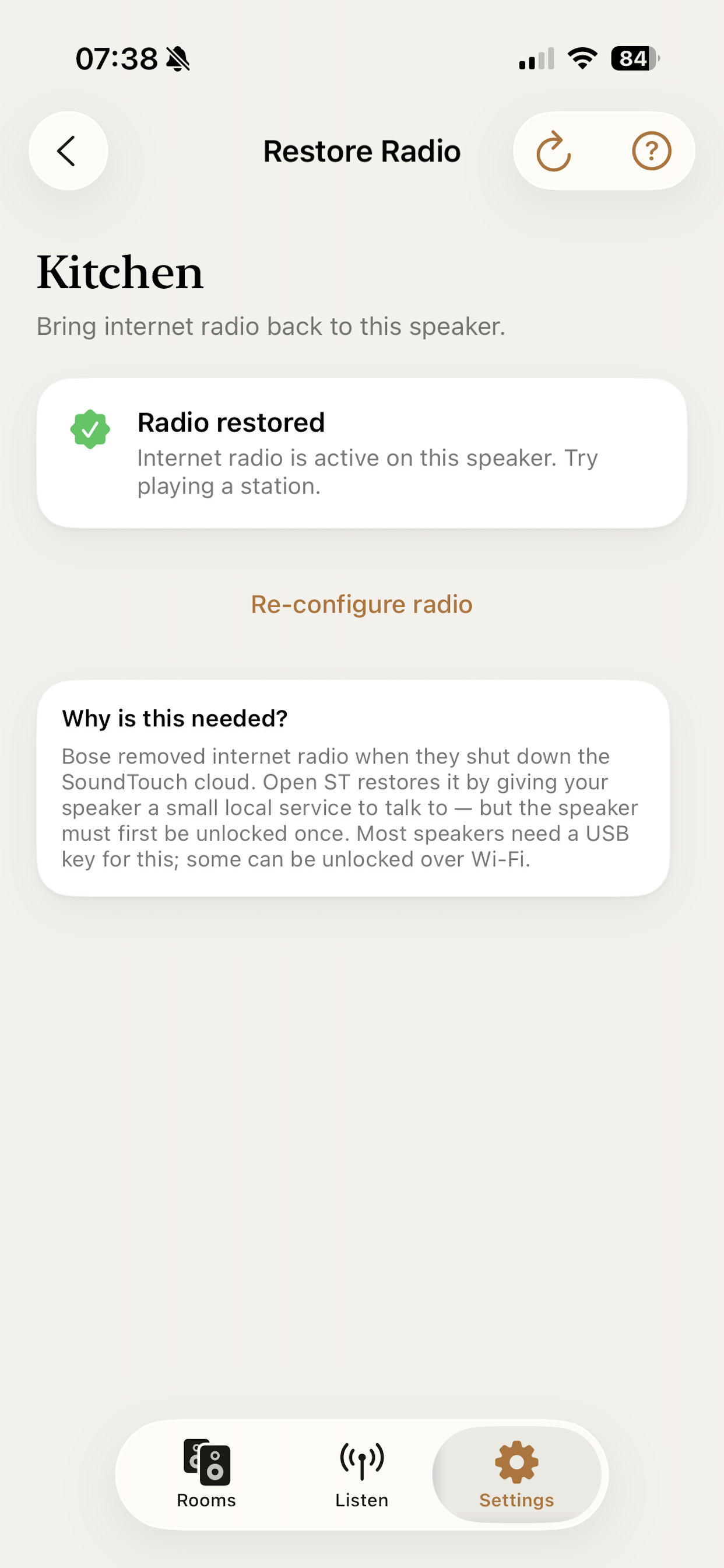
OpenST detects the unlocked speaker and, with one tap, points its radio service at the OpenST replacement cloud — all over your local Wi-Fi.
3
Reboot the speaker
Unplug it for a minute and plug it back in. The new settings activate on restart — then internet radio is back.
4
Play anything
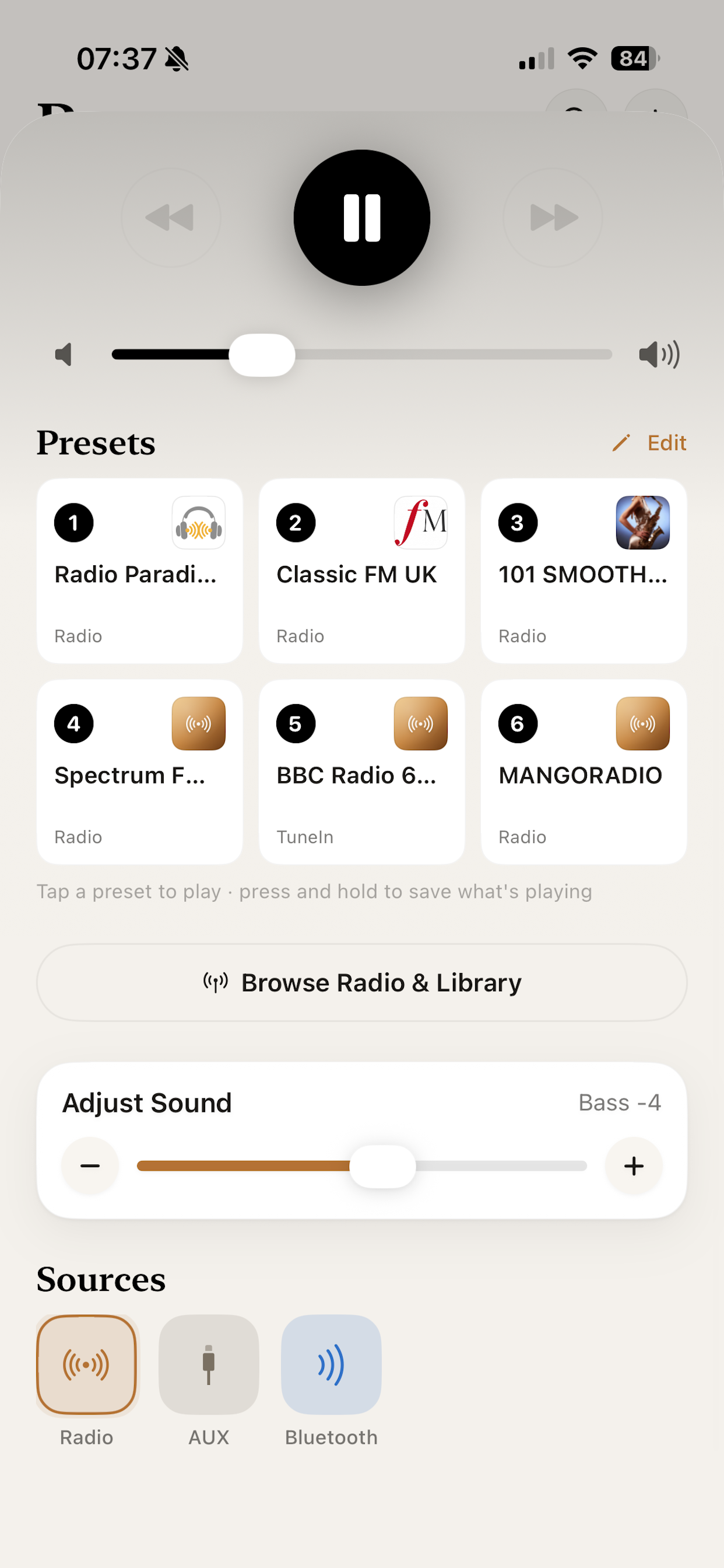
Browse and search thousands of stations by name or genre, set presets, group rooms, and control it all from the OpenST app.
Everything we rebuilt
The systems that make a SoundTouch whole again — all in one app.
Spotify on every speaker
Sign in once and Spotify Premium plays on any restored speaker — searchable library, playlists, and tap-to-play to any room. Pro.
Rename your speakers
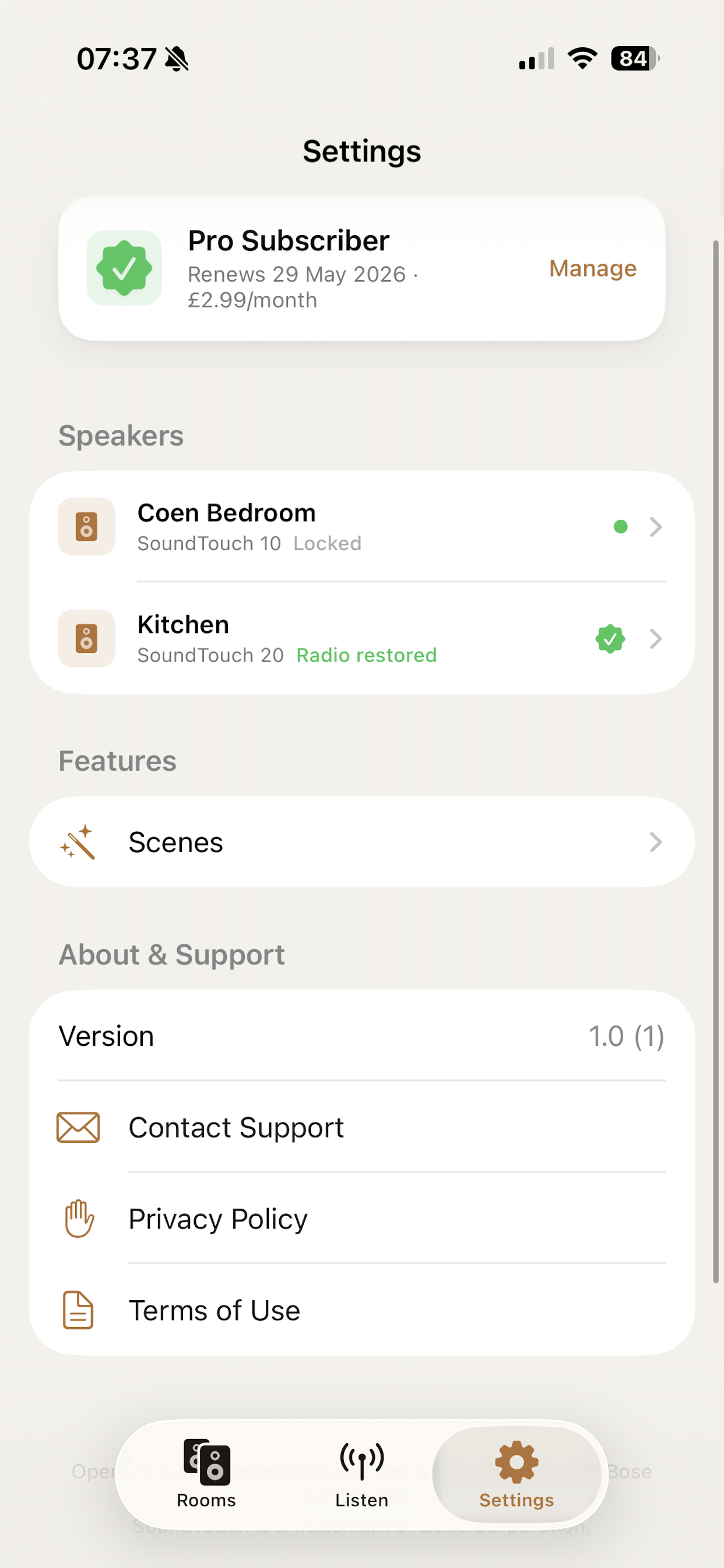
Give every speaker a name that makes sense — Kitchen, Bedroom, Office — straight from the speaker detail screen.
Reset & recover, in-app
If a speaker ever loses its way — moving house, new router, anything — the app walks you through a clean reset and brings it all the way back: Wi-Fi, radio, Spotify, the lot.
Internet radio, restored
Thousands of stations via TuneIn and RadioBrowser, plus your own custom streams — searchable by name and genre.
Multi-room & groups
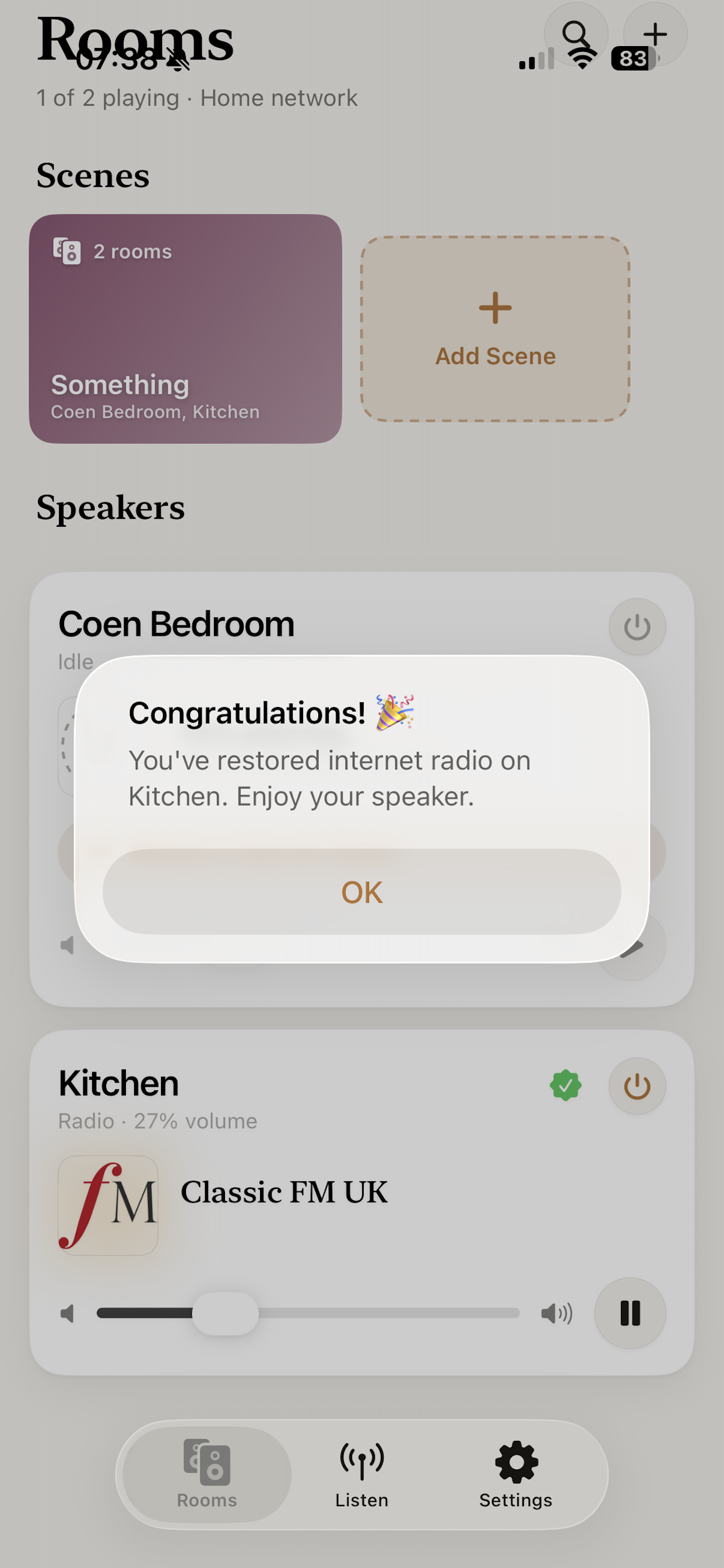
See every speaker at a glance, group them into zones, and control volume and playback per room.
Presets & scenes
Keep your favourite stations a tap away, and save rooms, sources and volume as one-tap scenes.
Runs on your network
No Bose account, no subscription to use your own speaker. The replacement service does the job Bose's cloud used to.
Built for SoundTouch
Designed specifically for SoundTouch hardware — it speaks the speaker's own protocols, no extra boxes required.
Safe & reversible
The setup only needs doing once per speaker, and it's reversible — it's your hardware, fully in your hands again.
Bring your speakers back
Download OpenST and restore internet radio to your Bose SoundTouch.
Got a spare USB stick? You can make the unlock key yourself in a few minutes. No soldering, no firmware flashing, just a file on a USB drive.
1
Format a small USB stick (Windows format, FAT32)
Any small USB drive works. Something in the MB range is perfect, anything up to 32 GB also fine. On Windows, right-click the drive, choose Format, set File system to FAT32. On a Mac, open Disk Utility and erase as MS-DOS (FAT) with the Master Boot Record scheme so the speaker can load it.
2
Add the unlock file
Create an empty file named exactly remote_services (no extension, no .txt on the end) in the root of the stick. On Windows, make sure file-name extensions are visible first so it doesn't sneak a .txt on.
3
Insert and power-cycle the speaker
Power the speaker off at the wall, plug the stick into its USB port, then power it back on. Wait around 60 seconds for it to read the key.
4
Configure in the app
Open OpenST on your phone. It detects the unlocked speaker. Tap Configure radio to set it up over Wi-Fi.
5
Reboot the speaker
Once configured, unplug the speaker for 1 minute then plug it back in. Internet radio is back. Most firmware needs the USB key to stay plugged in to keep the unlock active, so leave it in.
Stuck? Ask Claude to walk you through it
Copy the prompt below and paste it into Claude.ai. It'll give you step-by-step instructions for your exact operating system and answer any follow-up questions.
I want to make a USB unlock key for my Bose SoundTouch speaker so I can use the OpenST app to restore internet radio. Please walk me through these steps for my operating system and ask me what I'm using if you don't know:

1. Format a small USB stick (any size, even 128 MB works) as FAT32. On Mac use Disk Utility with MS-DOS (FAT) and Master Boot Record scheme so the speaker can load it.
2. Create an empty file in the root of the stick named exactly "remote_services" with NO file extension (not remote_services.txt). On Windows, make sure file extensions are visible first.
3. Power the speaker off, plug the stick in, power it back on, wait 60 seconds.
4. Open OpenST on my phone and configure the speaker.
5. After configuring, unplug the speaker for 1 minute then plug it back in. Leave the USB key plugged in.

Tell me which step I'm on and we'll go through them one at a time. Ask me questions if anything is unclear.
Prefer not to fiddle with a USB stick? Order a ready-made key and we'll post one to you.
Order an unlock key
Some speakers need a one-time USB key to unlock. We'll post you a ready-made one — plug it in, configure in the app, done.
OpenST USB Unlock Key
£24.99 each · UK delivery free
£24.99
Quantity
1
Buy more, save more
!
Keep the USB key inserted. The key must stay plugged into the speaker to keep the unlock active — please don't remove it after setup.
Payment & delivery details handled securely by Stripe. International delivery available at checkout.
Questions
Which speakers does OpenST work with?
OpenST is built for Bose SoundTouch speakers (SoundTouch 10, 20, 30, and the wider range) that lost functionality when Bose shut down the SoundTouch cloud.
Do I need a Bose account or subscription?
No. That's the point — OpenST replaces the cloud service Bose switched off, and runs on your own home network. No Bose login, no monthly fee to use your speaker.
What's the USB key for?
Some speaker firmware needs a one-time unlock before OpenST can configure it. Many speakers can be unlocked over Wi-Fi; others need a small USB key, which you can make yourself or order ready-made from within the app.
Is this safe? Will it damage my speaker?
The setup is a one-time configuration step and is reversible. OpenST points the speaker at a replacement radio service instead of Bose's dead cloud — it doesn't replace the speaker's firmware.
Is OpenST affiliated with Bose?
No. OpenST is an independent app and is not affiliated with, endorsed by, or sponsored by Bose Corporation. "Bose" and "SoundTouch" are trademarks of their respective owner.